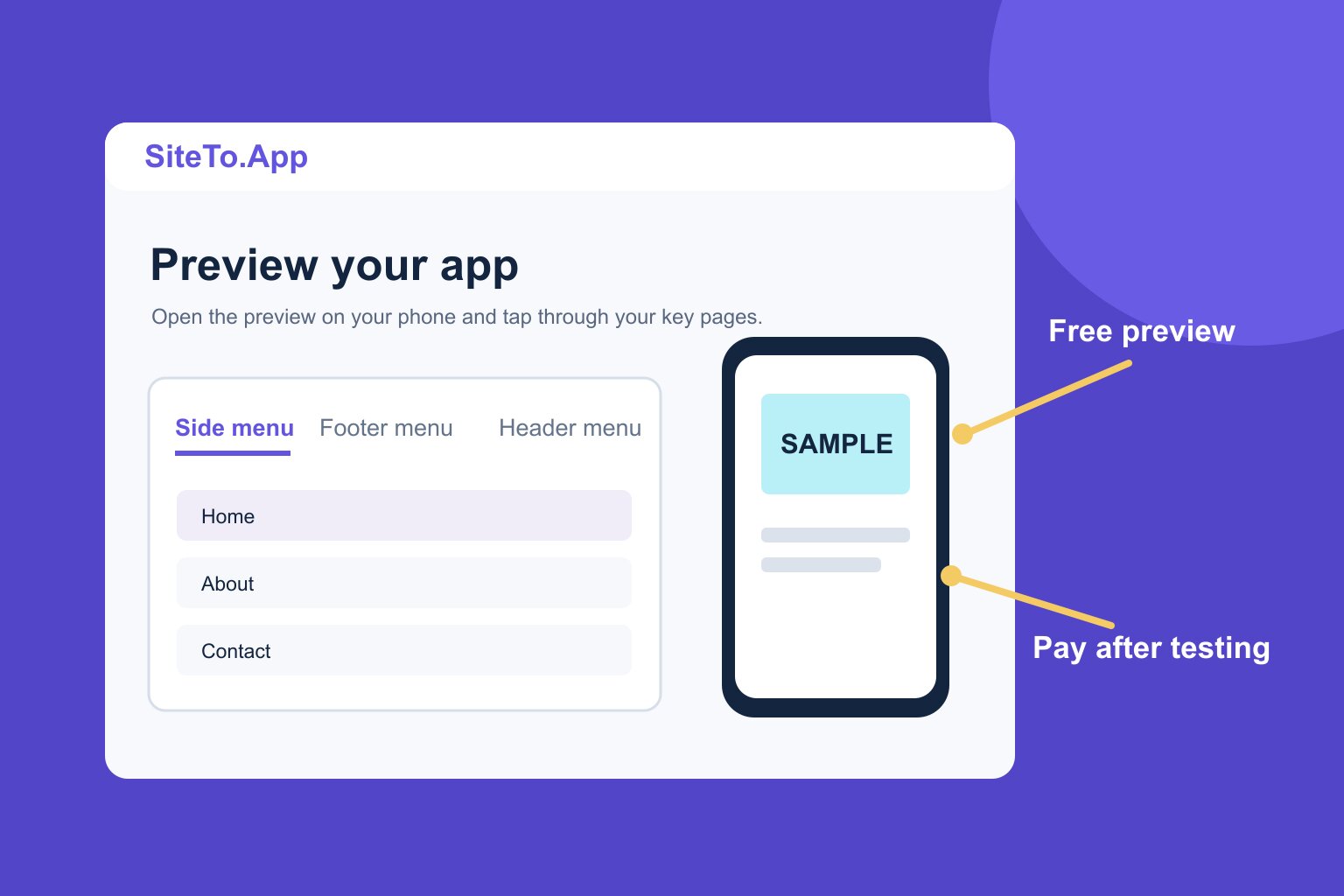
You can preview your website as an app for free in SiteTo.App. Enter your own URL, configure the first version of the app, and check it on a phone without a credit card. When you want a build for Android, iOS, or both, you pay a one-time build price. Publishing in the stores also requires developer accounts with Apple and Google, paid to those companies separately.
That is the useful meaning of “website to app free”: testing the experience before you commit. A free preview is not a free store-ready binary, and a low build price is not the whole launch budget. This guide separates the costs, explains what free tools often omit, and gives you a checklist for deciding whether your site is ready.

What is free, what is paid, and who receives the payment?
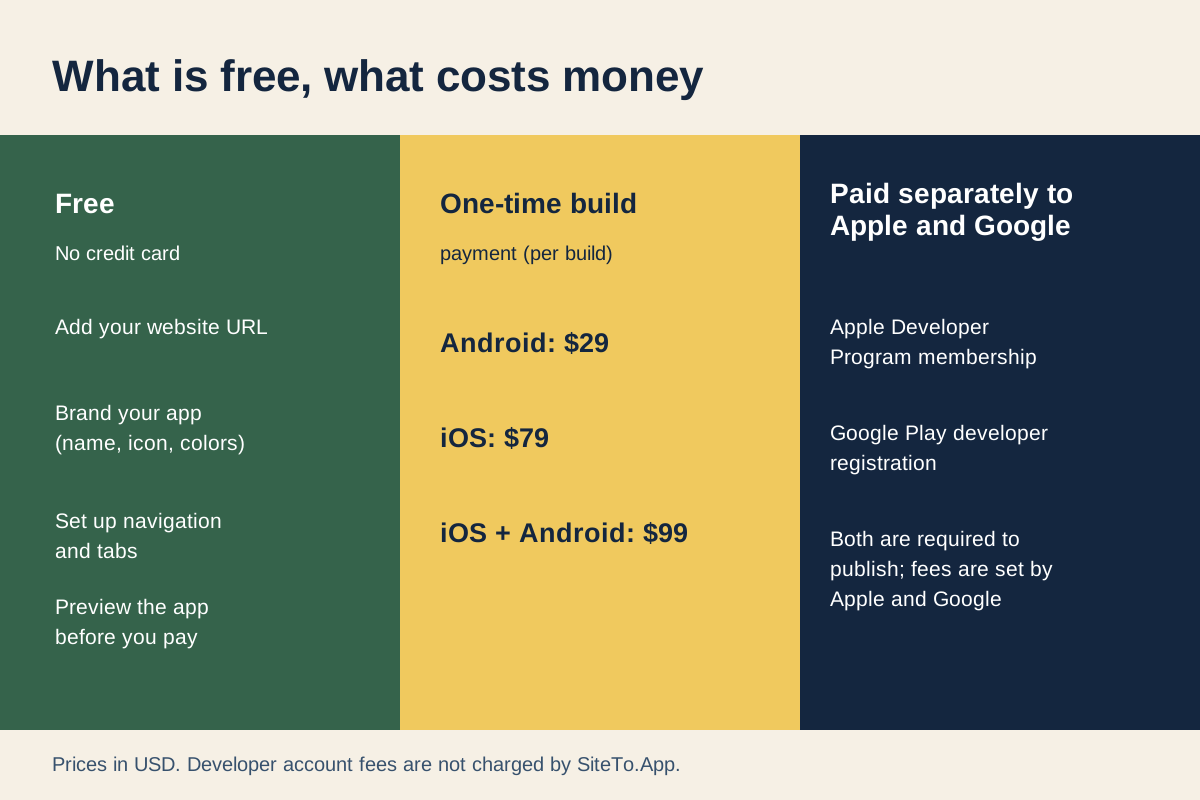
The three stages are easy to confuse, so keep them on separate lines:
| Stage | What you get | Who you pay |
|---|---|---|
| Preview | Enter your website URL, set initial branding and navigation, and inspect the app experience before ordering | Free in SiteTo.App; no credit card to start |
| Build | An Android, iOS, or combined app build from the configuration you approve | SiteTo.App, one-time per build: Android $29, iOS $79, or both $99 |
| Store accounts | Access to submit and manage your own app listings | Apple and Google separately, under their current developer-account terms |
The pricing page is the product source for the build amounts. The store account charges and terms can change, so check the current Apple Developer Program and Google Play Console registration guide before budgeting. Other costs may apply to your own website, payment provider, assets, or professional help; those are not included in the app build price.
This breakdown is more useful than asking whether an “app builder” is free. You need to know whether “free” covers a visual mockup, an installable test, a signed package, store submission support, or ongoing operation. Ask for the deliverable at each stage in plain language.
Use the free preview to answer a real question
The preview is for testing your existing site as a mobile app experience. You enter the URL of your live website, choose app branding and navigation, and inspect the result before paying for a build. The app uses the website you already publish, so your first task is to see whether it is comfortable on a phone. The create and publish guide explains the product flow.
Open the free website-to-app preview and enter your own URL. Do not judge it from the first screen alone. Follow the action your customers actually take: read an article, sign in, book a service, submit a form, add a product to cart, or complete checkout. The important question is whether the whole journey works in the embedded experience.
Try a fresh session with no stored login. Dismiss the cookie banner. Open the menu, use the device back action, and follow an external link. Test on the phone and operating system your audience uses. If you offer payments, inspect redirects, wallets, and confirmation pages. An attractive homepage cannot compensate for a checkout that never returns.
You can use the site readiness and cost tools to make a short checklist before you preview. The platform directory links to stack-specific checks for Wix, Squarespace, Webflow, Shopify, and more. If you run WordPress, the WordPress platform checklist helps you choose login, form, and content journeys for the free preview. A converter uses the mobile site you have, so fix the source site where it needs work.
What the one-time build price covers
SiteTo.App's published prices are $29 for Android, $79 for iOS, and $99 for iOS and Android together, one-time per build. The configuration includes the app name, icon, colors, launch screen, and navigation around the site. Android packages can be downloaded; iOS builds are signed through your connected Apple Developer account and delivered to TestFlight in App Store Connect. Follow the Apple connection guide for that step.
The live website remains your content source. A normal site update shows when users load or refresh the relevant page in the app, so you do not buy another build just to change a blog post or product description. Changes to the app shell or store requirements are different and may require a new build. “One-time per build” describes the payment for that build; it is not a promise that you will never need another one.
Push notifications are optional and require Firebase configuration plus permission from users. The Firebase guide covers the connection. Do not assume a website's PWA service worker, offline pages, or web push behavior automatically carries into the app. Test what you need in the preview and use the documented app notification setup for push. The PWA publishing guide and PWA vs native vs WebView comparison explain the different routes.
Developer accounts are separate from the builder
If you want to publish under your own name, you need the relevant developer account. Apple and Google set their own registration terms, fees, verification, and review requirements. You pay them directly, not through the SiteTo.App build price. Check the official pages linked above for current amounts rather than relying on a price copied from an old comparison article.
Account ownership matters beyond the fee. The account controls the app listing and store communications. Create or maintain it under the business or person who should own the app long term, and keep access to the domain, privacy policy, and support contact. If an agency helps you, document who can upload builds and who answers store review messages. The Google Play connection guide explains what to prepare for Android.
There is also time to budget. You will need an app name, icon, screenshots, description, privacy answers, and a working support route. Some accounts face additional verification or testing requirements under the stores' current rules. The app store publishing guide walks through the work after the binary exists.
What “free website to app builder” offers may leave out
Free tools vary, and a free tier can still be useful. The problem is that the label rarely tells you what you receive. Before relying on any free route, ask these questions without assuming the answers:
- Can I inspect my actual live website? A static phone frame or design preview may not run your login, forms, or checkout.
- Can I obtain a store-ready build? Some free routes stop at a home-screen shortcut, while others give you source code that you must compile and sign yourself.
- Who owns the package and listing? Confirm which account controls the bundle or package identifier and the store listing.
- What work is left to me? Store metadata, screenshots, privacy information, signing, and review responses still require an owner.
- Are there ongoing fees? Ask about subscriptions, hosting, notification services, rebuilds, or support after the first release.
- What happens when I change my site? Identify which updates appear from the live URL and which require a new binary.
These are questions to ask of a tool, not claims that every free product has the same limitations. Avoid choosing by the word “free” alone. Compare the complete path from preview to an app that customers can install and use.
Store approval is a separate decision
Paying for a build does not buy approval. Apple reviews apps against its App Review Guidelines, including Guideline 4.2, which expects more than a repackaged website. A bare WebView-style app can be rejected if it adds no value. The Guideline 4.2 article explains how to assess your site and app experience before submitting.
Google also reviews Play submissions under its current policies. Both stores may ask for changes or clarification. Make sure the app works at review time, give demo credentials when content requires a login, and keep privacy and support details accurate. Purposeful navigation and relevant optional notifications can make the experience more useful, but no feature list guarantees acceptance.
If you only need a shortcut for a small internal group, a browser install or PWA may be enough. If people need an app store listing, plan for a store build and the review process. The website-to-app conversion guide maps those choices from site audit through submission.
Make a simple launch budget
List costs and responsibilities before building:
- Site work: List any mobile fixes to navigation, login, forms, checkout, or speed. These are your website costs, if any.
- App build: Choose Android $29, iOS $79, or both $99 from the current pricing page.
- Developer accounts: Budget for Apple’s $99 yearly Developer Program membership and Google Play’s $25 one-time registration fee; confirm current terms and pay the stores directly.
- Listing work: Assign screenshots, copy, privacy answers, support contact, test credentials, and review responses.
- Later changes: Decide who maintains the website and who can request another build if the app shell or store rules change.
If you cannot fill in the account owner or review contact, resolve that before paying. A build file without a submission owner can sit unused. If the preview exposes a broken customer journey, fix that before treating the build price as a launch quote.
Common questions
Can I turn my website into an app for free?
You can preview it as an app in SiteTo.App for free, without a credit card. A store build is paid at the published one-time price, and developer accounts are separate. The preview lets you decide whether the site experience is worth building.
Is “no code” the same as no work?
No code is needed to start from your URL, configure the shell, and preview. You still need a mobile-friendly site, working customer flows, store assets, developer accounts, and a submission that meets store rules.
Are app store fees included in the $29, $79, or $99 build?
No. Apple and Google set and collect their own developer-account fees. Check their current official pages for terms and amounts, because those can change.
Do website changes require another payment?
Ordinary published content changes appear when the app loads or refreshes the website page. A change to app branding, navigation, or technical requirements may need another build, which is priced per build.
Can a free preview tell me whether the stores will approve my app?
No. It can reveal layout and functional problems before you pay, but Apple and Google decide on submitted builds. Review the relevant rules and make the finished app useful beyond a bare website wrapper.
Next step
Preview your website as an app for free, run one complete customer journey on your phone, and use the result to decide whether a paid build and store listing are worthwhile for your site.
See your website as an app
Customize the experience and preview it before choosing a platform.
Build your preview