
Connecting your Google Play Developer account stores the Play Console credentials for this app so they are available when SiteTo.App builds your Android package. SiteTo.App does not upload your app to Google Play or submit it for review. Each Android build produces an APK or AAB that you download, and you upload that file to Play Console yourself. You stay in control of the account, the store listing, and every release.
Before you begin
You will need:
- An active Google Play Developer account
- Owner or administrator access to that Play Console account
- A Google Cloud project you can manage, or permission to create one
- Your app set up in SiteTo.App
You will create a service account and download one JSON key file. Treat that file like a password: do not email it, share it in chat, or save it in a public folder.
1. Create or select a Google Cloud project
- Open the Google Cloud Console.
- Sign in with the Google account you use to manage your business.
- Select an existing project dedicated to your mobile app, or choose New project.
- Give the project a clear name, such as SiteTo.App publishing, and select Create.
- Make sure the new project is selected before continuing.
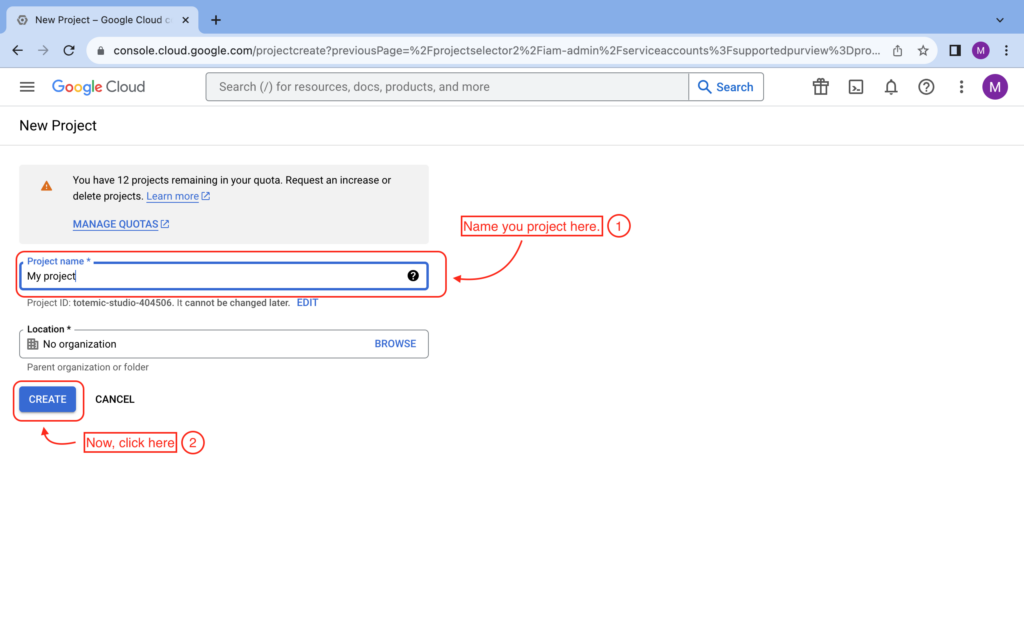
You do not need to grant the service account an Owner role in Google Cloud. Google Play permissions are assigned separately in Play Console.
2. Enable the Google Play Android Developer API
- Open the Google Play Android Developer API in Google Cloud Console.
- Confirm that the correct Cloud project appears in the project selector.
- Select Enable.
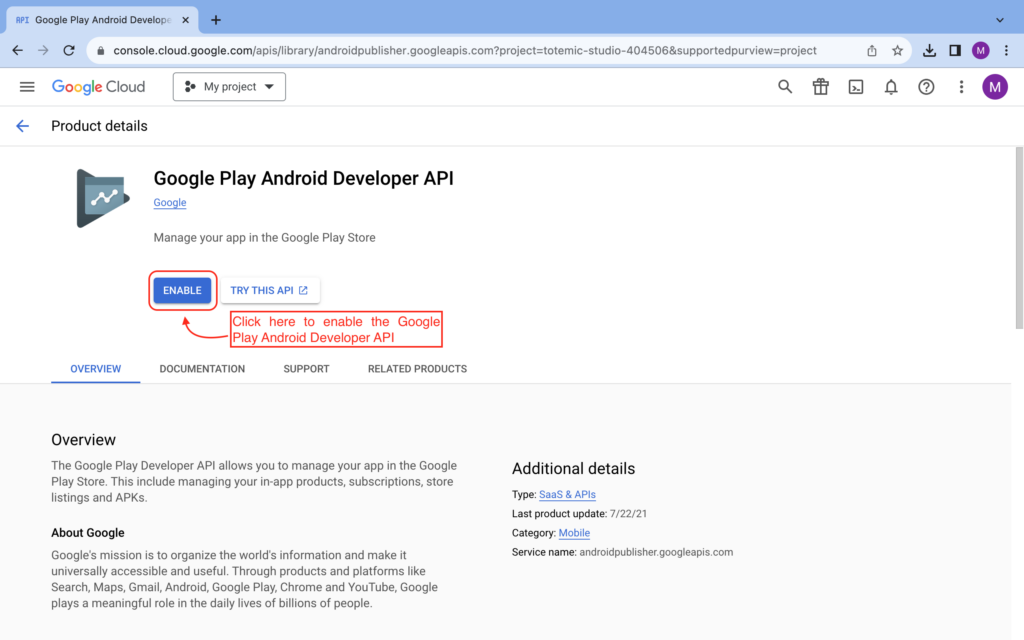
If the page shows Manage instead, the API is already enabled and you can continue.
3. Create a service account
- Open Service accounts in Google Cloud Console.
- Select Create service account.
- Enter a descriptive name, such as SiteTo.App Google Play publishing.
- Select Create and continue.
- Skip the optional Cloud project roles and user-access steps, then select Done.
- Copy the service account email. It ends in
iam.gserviceaccount.comand you will invite it to Play Console in step 5.
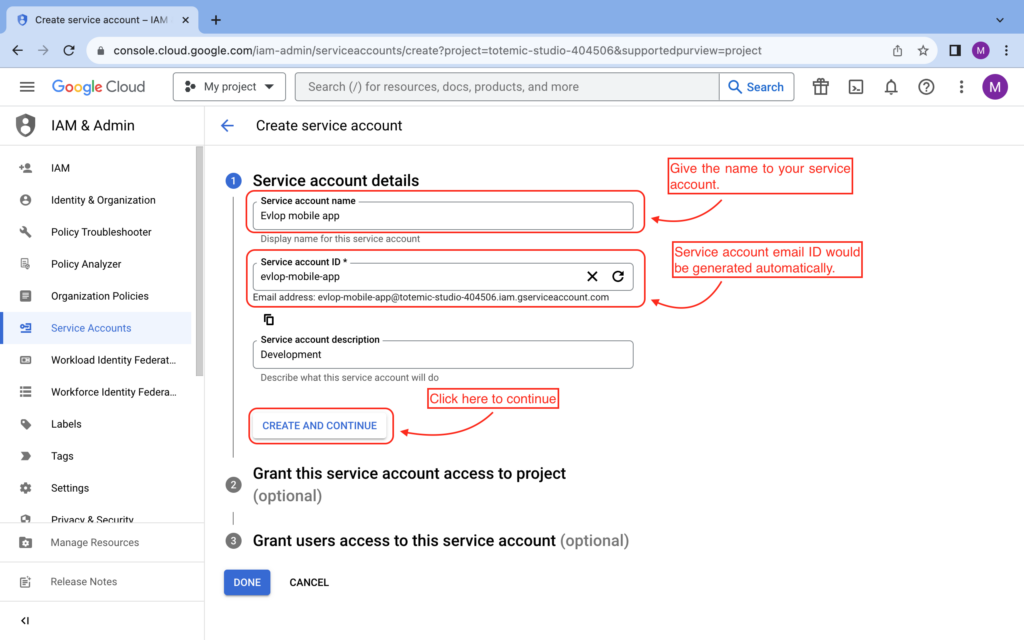
The service account is a separate identity used only for secure server-to-server access. It is not your personal Google login.
4. Download the JSON key
- On the Service accounts page, select the service account you just created.
- Open the Keys tab.
- Select Add key, then Create new key.
- Choose JSON and select Create.
- Save the downloaded file somewhere private. Google will not let you download the same private key again.
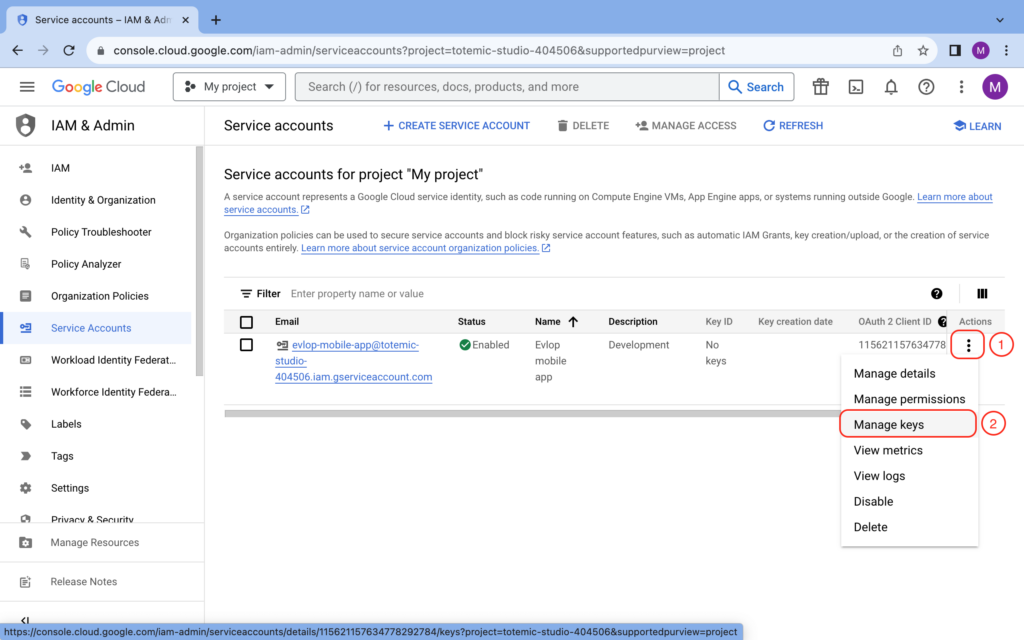
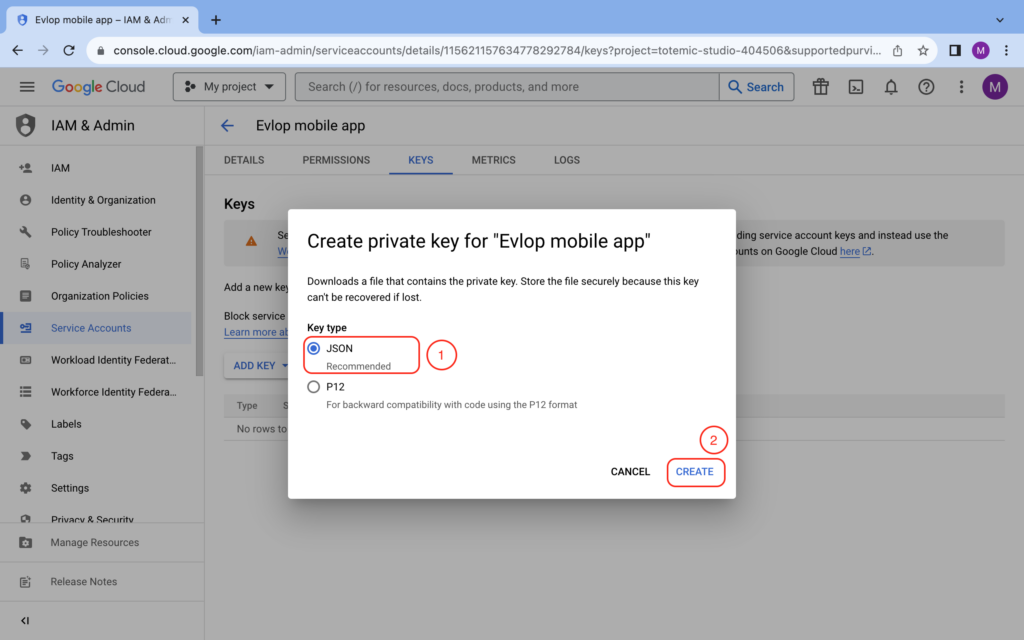
Do not rename the file to a different extension or edit its contents. SiteTo.App expects the original JSON file.
5. Give the service account access in Play Console
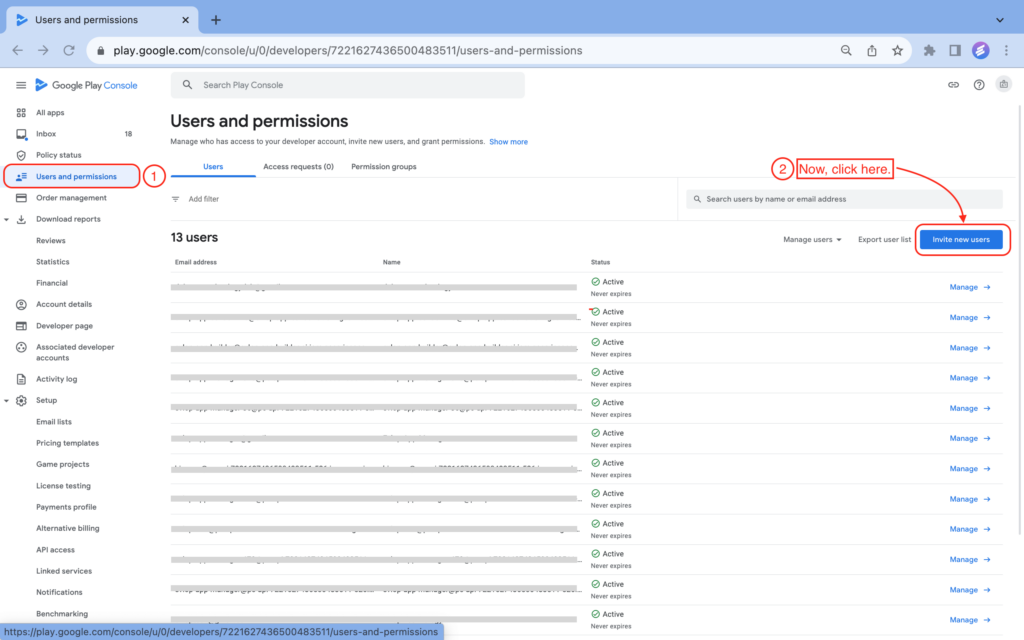
- Open Users and permissions in Google Play Console.
- Select Invite new users.
- Paste the service account email you copied in step 3.
- Give it access to the Android app you want to connect.
- Grant View app information (read-only).
SiteTo.App does not release builds to Play testing or production tracks, so there is no need to grant release or store-listing permissions. Do not grant financial, order, subscription, user-management, or full administrator permissions.
Select Invite user to finish. Google may take a minute or two to apply new access.
6. Connect Google Play in SiteTo.App
- Sign in to SiteTo.App.
- Open the app you want to connect.
- In the app editor, find Connect and choose Google Play. You can also use Connect Google Play in the app checklist.
- In Developer account email, enter the Google email address that owns or administers your Play Console account. Do not enter the service account email here.
- Under Service account key (JSON), upload the JSON file from step 4.
- Select Save.
The Google Play card will show Connected when the credentials have been saved. SiteTo.App keeps the credentials with this app and passes them to its Android builds. It does not use them to upload or release anything in Play Console.
What happens next
Finish your app icon, splash screen, navigation, and other app details in SiteTo.App. When you are ready, choose an Android plan and request a build from the app's Build & publish screen. Pick APK for an installable file you can test or share directly, or AAB, the bundle format Google Play requires for store uploads. When the build completes, download it from the build history.
To publish, create a release in Play Console, upload the AAB, complete the store listing, and submit it for review yourself. Google reviews every release, so neither connecting the account nor downloading a build publishes the app or guarantees approval.
If you disconnect the account or delete the key, SiteTo.App will no longer have the saved credentials. Android builds can still be requested without them.
Troubleshooting
SiteTo.App says the JSON file is invalid
Make sure you uploaded the unedited .json key downloaded from the service account's Keys tab. A project configuration file, OAuth client file, or Firebase configuration file will not work.
The account connects, but Play Console shows a permissions error
Open Users and permissions in Play Console, select the service account, and confirm that it has access to the correct app plus the read-only permission listed in step 5. New permissions can take a few minutes to become active.
You cannot create a service account key
Your Google Workspace or Cloud organization may block user-managed service account keys. Ask your Cloud administrator to create an approved JSON key or allow key creation for this service account.
The service account is connected to the wrong app
In SiteTo.App, open the affected app, choose Connect → Google Play, and select Disconnect. Then adjust the service account's app access in Play Console and reconnect it to the correct SiteTo.App project.
Keep the connection secure
- Store the JSON key in a secure password or secrets manager.
- Never commit the key to a code repository or upload it to cloud storage with public access.
- Give the service account access only to the app and actions it needs.
- Remove old keys from Google Cloud after replacing them in SiteTo.App.
- Review service-account access in Play Console after your publishing work is complete.
For Google's latest setup details, see the official Google Play Developer API guide, Play Console permissions guide, and service account key guide.
Google may update labels or page layouts over time.