
Connecting your Apple Developer account gives SiteTo.App the information needed to sign your iOS build and upload it to TestFlight in your own App Store Connect account. SiteTo.App does not submit the app to the App Store for review. You do that yourself in App Store Connect, and your business remains the owner of the app, its store listing, and its release history.
Before you begin
You will need:
- An active Apple Developer Program membership
- Account Holder or Admin access in App Store Connect
- Two-factor authentication enabled for your Apple Account
- Your app set up in SiteTo.App
You will generate an App Store Connect team API key and download one .p8 private-key file. Treat that file like a password: never email it, paste it into chat, or store it in a public folder.
1. Sign in to App Store Connect
- Open App Store Connect.
- Sign in with the Apple Account associated with your Apple Developer Program membership.
- Complete two-factor authentication if Apple asks for it.
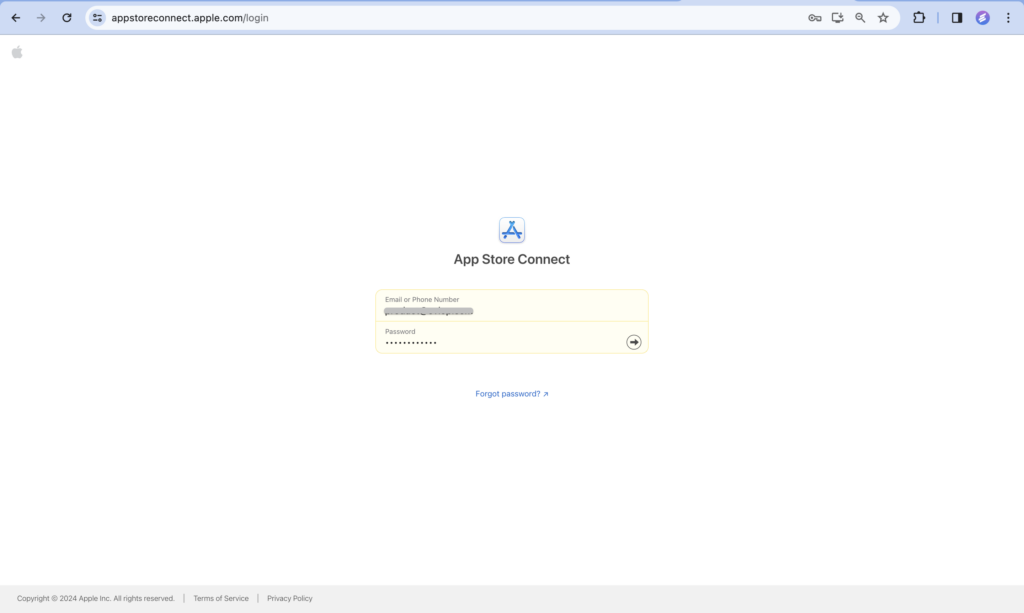
If you can sign in but cannot see Users and Access, ask your organization's Account Holder or an Admin to complete the API-key steps.
2. Open the App Store Connect API settings
- From the App Store Connect home page, select Users and Access.
- Open the Integrations tab.
- Select App Store Connect API in the sidebar.
- Make sure Team Keys is selected.
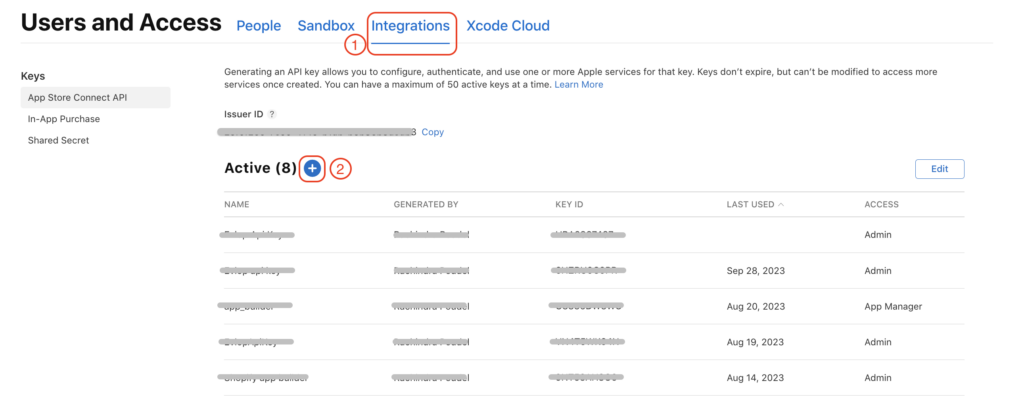
If this is the first API key for the account, the Account Holder may need to select Request Access, accept Apple's terms, and wait for approval before keys can be generated.
3. Generate a dedicated API key
- Select Generate API Key. If another active key already exists, select the add button (
+). - Enter a recognizable name such as SiteTo.App publishing.
- Choose the access role required for your publishing workflow. App Manager is the narrower publishing role; use Admin only when your SiteTo.App publishing arrangement requires account-wide setup tasks.
- Select Generate.
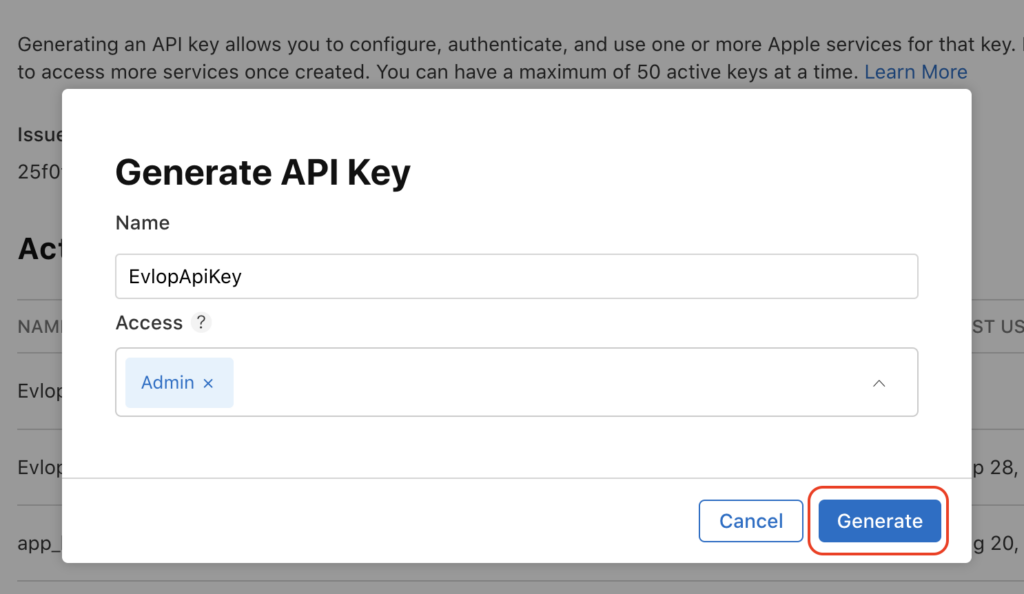
Team keys apply across the App Store Connect account rather than a single app. Creating a dedicated key makes it easier to audit or revoke SiteTo.App access later.
4. Copy the Issuer ID and Key ID
On the App Store Connect API page, save these two values:
- Issuer ID — the UUID shown near the top of the page
- Key ID — the short identifier shown beside your new API key
You will enter both values in SiteTo.App. Copy them exactly, without adding spaces.
5. Download the private key
- Find the API key you just created.
- Select Download.
- Confirm the download if Apple asks.
- Store the downloaded
AuthKey_XXXXXXXXXX.p8file somewhere private.
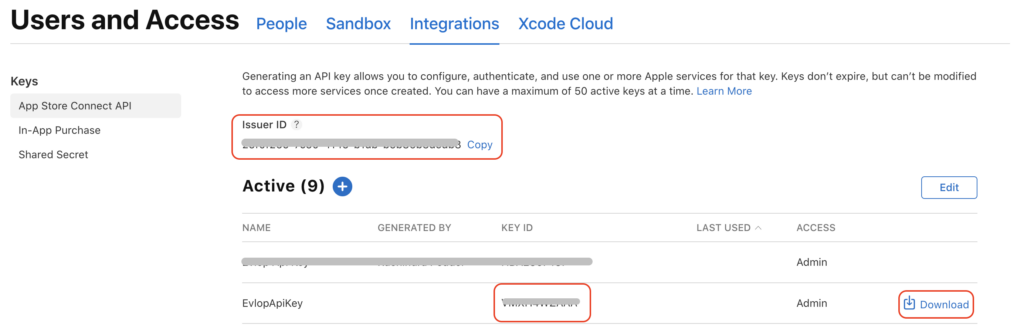
Apple allows the private key to be downloaded only once and does not keep a copy. If it is lost, delete or revoke the key and create a replacement.
6. Find your Team ID and team name
- Sign in to your Apple Developer account.
- Open Membership details.
- Copy the Team ID. It is a unique 10-character identifier such as
A1B2C3D4E5. - Note the membership's organization or entity name. You can use this as the optional Team name in SiteTo.App.
The Team ID is different from the Issuer ID and Key ID. SiteTo.App uses all three to identify the correct Apple developer team and API key.
7. Connect Apple Developer in SiteTo.App
- Sign in to SiteTo.App.
- Open the app you want to publish.
- In the app editor, find Connect and choose Apple Developer. You can also select Connect Apple Developer in the app checklist.
- Complete the connection form:
- Apple ID email — the email for the Apple Account associated with your developer membership
- Team ID — the 10-character ID from step 6
- Team name — your organization or membership name; this field is optional
- App Store Connect Key ID — the key identifier from step 4
- App Store Connect Issuer ID — the UUID from step 4
- App Store Connect API key (.p8) — the
AuthKey_XXXXXXXXXX.p8file from step 5
- Select Save.
The Apple Developer card will show Connected after the Team ID and private key have been saved. SiteTo.App can then use the supplied App Store Connect credentials to sign and upload this app's iOS builds to TestFlight.
What happens next
Finish your app icon, splash screen, navigation, and other app details in SiteTo.App. When you are ready, choose an iOS plan and request a build from the app's Build & publish screen. Each iOS build is signed and uploaded to TestFlight in your App Store Connect account. Once Apple finishes processing it, you can test it with TestFlight.
SiteTo.App does not submit the build to the App Store, add screenshots, or fill in your store listing. To release the app, open App Store Connect, complete the listing, select the processed build, and submit it for App Review yourself. Apple reviews every submission before release and decides whether to approve it.
Keep the API key active while your app is being built and uploaded. Revoking the key, replacing the Team ID, or disconnecting the account will stop SiteTo.App from using the connection.
Troubleshooting
You cannot see Integrations or generate a team key
Team API keys can be managed by the Account Holder or an Admin. Confirm that you are signed into the correct App Store Connect team and that API access has been requested and approved.
SiteTo.App does not accept the private key
Upload the original .p8 file downloaded from App Store Connect. Distribution certificates, provisioning profiles, .cer files, and push-notification keys are different credentials and will not work here.
The account connects, but the iOS build fails to upload
Confirm that the Issuer ID, Key ID, and Team ID belong to the same Apple developer team. Then check that the API key still appears under Users and Access → Integrations → App Store Connect API and has a role that permits app delivery.
You lost the .p8 file
Apple does not offer a second download. Revoke the lost key, generate a replacement, and update the Key ID, Issuer ID, and .p8 file in SiteTo.App.
Keep the connection secure
- Store the
.p8file in a secure password or secrets manager. - Never commit the private key to a code repository or include it in client-side code.
- Use a dedicated API key rather than reusing a key shared with another service.
- Revoke lost, exposed, or unused keys immediately in App Store Connect.
- Review active API keys after your publishing work is complete.
For Apple's latest instructions, see the official App Store Connect API guide, API-key documentation, and Team ID guide.
Apple may update labels or page layouts over time.