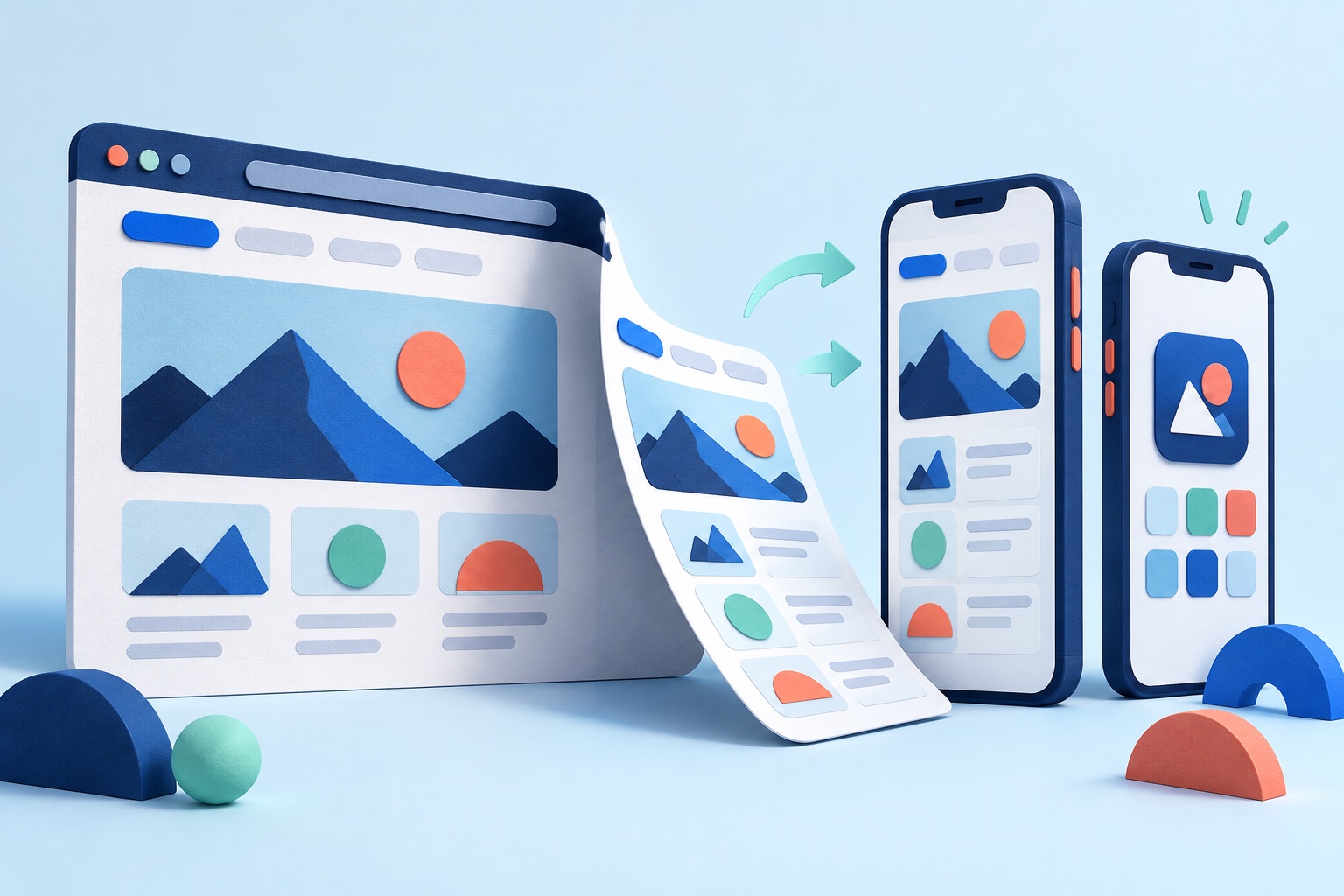
To convert a website to a mobile app, choose a home-screen shortcut, a PWA, a website-to-app converter, or a custom rebuild. A shortcut has no store listing; a converter can produce iOS and Android builds from a mobile-friendly site; custom development suits demanding offline or device features. Test the customer journey on a phone before choosing.
For most small businesses with a responsive site, the practical route is a website-to-app converter: enter the website URL, add mobile navigation and branding, test the result, generate iOS and Android builds, and submit them to the stores. A progressive web app is simpler but is not the same as a store-distributed app. A custom native rebuild gives maximum control at much greater cost.

SiteTo.App follows that converter route with no code. Enter a public, mobile-friendly website, add your app name, icon, launch screen and menus, and preview the result on your phone for free. Paying a one-time build fee ($29 Android, $79 iOS, $99 both) gets you iOS and Android builds ready for you to submit.
What is the best way to turn my website into an app?
If your mobile website already handles the job, a website-to-app converter is usually the most practical way to get into the App Store and Google Play. If store listings do not matter, start with a PWA. If you depend on Bluetooth, augmented reality, heavy offline work or background processing, budget for custom native development.
Four ways to turn a website into an app
| Method | Effort | Cost range | Store distribution | Native features |
|---|---|---|---|---|
| Home-screen shortcut | Minutes for users | Free | None | Browser-dependent only |
| PWA | Web development and testing | Free software; developer time varies | Primarily web; packaging needed for stores | Selected web APIs; support varies |
| Website-to-app converter | Configure, test, then submit | SiteTo.App: $29 Android, $79 iOS, $99 both; other models vary | iOS and Android builds for submission | Depends on converter; SiteTo.App adds navigation and Firebase push |
| Custom native or cross-platform build | Dedicated design, engineering, and release work | Commonly five figures and up | iOS and Android with separate builds | Broadest device and offline control |
Store accounts, assets, and review work are additional for any store route. See the website-to-app cost breakdown for the full budget.
1. Add the website to the home screen
Modern phones can save a website to the home screen. This takes minutes and may be enough for an internal tool or a site used by a small group.
It does not create an App Store or Google Play listing, and the experience varies by browser and operating system. Users must also discover the add-to-home-screen action themselves.
Choose this when: you need a free personal shortcut, not a public mobile product.
2. Build a progressive web app
A progressive web app, or PWA, uses a web app manifest and usually a service worker to support installation-like behavior, caching, and selected device capabilities. One codebase serves the web and installed experience.
PWAs are useful when you want broad reach and direct web distribution. However, operating-system support differs, store presence is limited or indirect, and some native capabilities remain harder to deliver consistently.
Choose this when: web distribution matters more than a conventional iOS and Android store presence.
3. Use a website-to-app converter
A converter puts your web experience inside an iOS or Android application and adds an app layer around it. Depending on the service, that layer can provide native navigation, push notifications, deep links, a splash screen, file handling, share actions, and other integrations.
This route preserves your website as the main content system. Product and content updates appear when users load or refresh the site in the app. For a Drupal site, use the Drupal platform checklist to test modules, forms, and authentication before building.
Choose this when: the website already works well on mobile and you want a faster, lower-cost route to both stores. Agencies packaging CMS-heavy sites can follow the Webflow mobile launch checklist.
4. Rebuild with native or cross-platform code
A custom team can recreate the product in Swift for iOS, Kotlin for Android, or a cross-platform framework such as React Native or Flutter. This provides the greatest interface and device-level control but introduces another codebase, a longer launch schedule, and ongoing engineering work.
Choose this when: the mobile product must work substantially differently from the website or depends on advanced offline processing, Bluetooth, background tasks, graphics, or hardware integrations.
For a deeper comparison, see PWA vs. native app vs. WebView.
How to convert your website with a no-code converter
Step 1: Audit the mobile website
Open the site on a small iPhone and an Android phone. Complete the main journey from start to finish. Test sign-in, checkout, booking, forms, menus, media, file uploads, payment handoffs, and password reset.
Fix these issues before wrapping the site:
- Text or controls that require zooming
- Buttons that are too close together
- Slow pages or oversized images
- Hover-only menus
- Popups that cover the screen
- Links that unexpectedly leave the intended flow
- Cookie banners that cannot be dismissed on a small screen
An app converter carries the mobile web experience into the app. Good input produces a much better result.
Step 2: Choose iOS, Android, or both
Android is often the lower-cost place to validate demand. iOS may be essential when customers primarily use iPhones. Choosing both maximizes reach and gives customers a consistent place to find the brand.
The platforms require separate developer accounts and store listings. Apple’s Developer Program is currently $99 per membership year. Google charges a one-time $25 registration fee. New personal Play Console accounts face a closed-test requirement before production access. Plan for it using the account-specific details in the publishing guide.
Step 3: Configure the app identity
Prepare a concise app name, square high-resolution icon, brand colors, and splash-screen treatment. Use the same recognizable identity customers already see on the website.
Avoid placing small words inside the icon. It must remain legible at notification size. Also search both stores for confusingly similar names before settling on one.
Step 4: Design app navigation
Do not copy every desktop navigation item. A mobile app works better with a focused set of destinations such as Home, Browse, Orders, Saved, and Account.
Link each destination to a stable web path and decide which external domains should open in the system browser. Keep legal pages, support, privacy controls, and account deletion easy to reach.
Step 5: Add app-specific value
Apple explicitly warns against apps that are merely repackaged websites. Choose native additions that solve a real user problem:
- Push notifications for timely updates users choose to receive
- Persistent login where appropriate
- Native sharing
- Deep links from email or notifications
- Camera or file-upload support
- Saved content or selected offline behavior
- Native navigation and loading states
More features are not always better. A few well-integrated capabilities are stronger than a long list of unreliable ones.
Check which of these a converter actually provides before you rely on it. SiteTo.App, for example, adds focused app navigation, branding, and push notifications through your own Firebase project, and notifications can open a specific page when tapped. Its JavaScript SDK lets your website set native header titles, show badges on navigation tabs, open the native share sheet, and respond to app lifecycle events. Uploads, downloads, and saved content depend on how your website already handles them, so test those flows in the preview.
Step 6: Test on real devices
Test more than the home page. Use at least one current and one older device when possible. Check slow networks, offline behavior, rotation, keyboard input, system back gestures, external authentication, payment return paths, and notification permission flows.
Ask someone unfamiliar with the site to complete the main task. Their hesitation often reveals navigation assumptions the owner no longer notices.
Step 7: Prepare store listings
Each store needs an app name, description, category, screenshots, privacy information, contact details, and a support or privacy-policy URL. Your screenshots and claims must match the app users receive.
If content is behind a login, provide the review team with working credentials and clear instructions. Broken reviewer access is an avoidable cause of delay.
Step 8: Submit and respond to review
Upload the signed build, finish the policy declarations, and submit it for review. If a reviewer flags a problem, read the cited rule, correct the app or listing, and explain the change clearly in review notes.
Our store publishing walkthrough covers both platforms in detail.
How long does website-to-app conversion take?
A straightforward configuration can be previewed in minutes. Branding, device testing, store assets, account verification, and review take longer. Plan in days or weeks rather than assuming the app will be publicly listed the same afternoon.
A custom rebuild is a different project: even a modest product can take months once design, development, quality assurance, and release work are included.
How much does it cost?
SiteTo.App currently charges a one-time $29 for Android, $79 for iOS, or $99 for both app builds. Other self-service converters use monthly subscriptions, annual licenses, or one-time source-code fees. Managed services and custom development cost more.
Include developer accounts, design work, testing devices, maintenance, and future policy updates in the estimate. Apple and Google raise their minimum SDK requirements every year, so an app that is never rebuilt eventually cannot receive updates. See the full website-to-app cost breakdown.
Is converting a website into an app worth it?
It is most valuable when customers already return to the website and would benefit from faster access, notifications, or a focused mobile flow. Ecommerce stores, membership communities, publications, booking services, customer portals, and event products are common fits.
An app is less compelling for a brochure site visited once or twice. Confirm the repeat-use case before paying for features or promotion.
Common questions
Can I convert a website to a mobile app without coding?
Yes. A no-code converter can take a public, mobile-friendly URL, add app branding and navigation, and prepare Android and iOS builds. You still need to test login, forms, checkout, and other customer tasks on a phone. Store listings, privacy answers, developer accounts, and final submission remain your responsibility.
Does a home-screen shortcut appear in the app stores?
No. Saving a website to a phone’s home screen creates a shortcut for that user, not an App Store or Google Play listing. It can be enough for a small internal tool or a frequently used personal site. If store discovery and distribution matter, you need a packaged app and store review.
Can a PWA replace an iOS and Android store app?
Yes for some web-first products, but a browser-installed PWA does not itself create conventional store listings. Device capabilities and install behavior vary across platforms. If customers must find the product in both stores, compare a converter or a packaged PWA route and test the specific features you need.
How much does a converter build cost with SiteTo.App?
$29 buys an Android build, $79 an iOS build, and $99 both as one-time build fees. The preview is free without a credit card. Apple and Google developer accounts, site hosting, assets, and later rebuilds are separate. Ordinary website content updates appear in the app without a new build when the page loads.
Should I rebuild the product as a native app for advanced features?
Yes, when the mobile product depends on advanced offline workflows, Bluetooth, augmented reality, background processing, or a substantially different interface, budget for native or cross-platform development. A website-based app is a practical fit when the current mobile site already handles the core task. Validate the required device behavior before committing to either route.
Start with the website you already have
You do not need to discard a working website to create a mobile app. Begin by making the mobile journey solid, choose the lightest conversion method that meets your goals, add useful mobile features, and test the full experience before store submission.
Preview your website as an iOS or Android app to see whether a converter fits your project.
See your website as an app
Customize the experience and preview it before choosing a platform.
Build your preview