A Webflow to app build starts with the published URL. It keeps the responsive layout, CMS pages, and customer flows, then adds app branding and navigation. That makes mobile quality assurance the agency’s main job.
Watch for a CMS item that overflows, an interaction that blocks a button, or a checkout redirect that fails inside the app. Use this checklist before a build and at client handoff.
Scope the client request before opening a builder
Ask the client what the app should help users do more often. An editorial site may need quick access to new articles. A directory may need repeat searches and saved routes through content. A shop may care most about cart and checkout. The answer determines your test pages and navigation choices.
Record the mobile journeys, app settings, and store work the client will own. SiteTo.App packages the published site with configurable name, icon, colors, launch screen, navigation, and optional Firebase push notifications. It does not turn Webflow pages into native screens. Use the Webflow platform checklist for interactions, forms, authentication, ecommerce, consent, and custom code.
For a different interface, offline product behavior, or bespoke device features, scope a separate app project.
Inventory CMS collections and real content states
Webflow CMS Collection pages use a template for individual items. Webflow's Collection pages guide explains the pattern. One well-behaved demo item is not enough to prove every page works. Choose a short title, a long title, an item with many images, and an item with sparse content. Open each on a small phone.
Test collection lists: filters, pagination, empty states, and card links. In a directory, search beyond the first screen; in an article list, open a story and return. Check that app navigation preserves a way back.
Give the content team a publishing check for new CMS items: test wide images, long labels, and embeds at phone width, then verify the live page’s main action. Site updates appear in the app when users load or refresh the page; the team owns mobile checks in Webflow.
Audit mobile breakpoints on the published site
Webflow provides responsive breakpoints for desktop, tablet, and phones, with styles cascading between them. Its breakpoints overview is the current reference. Review mobile portrait and landscape where relevant, then test the published site on actual devices. Editor canvas behavior and an embedded mobile view are useful checks, but neither replaces a real tap and scroll test.
Check the header, first action, fixed menu, larger text, and forms with the keyboard open. Then follow the three journeys from the brief.
Page speed matters because the app displays the mobile site. Heavy hero video, oversized images, many scripts, or several animation layers can make the first load feel slow. Measure and improve the Webflow page itself; the app shell cannot make a slow page fast. Compare Wi-Fi with a mobile connection and test a repeat visit. Avoid promising a specific speed increase from conversion.
Review interactions and animations as functional UI
Webflow interactions can respond to scroll, click, hover, and other triggers. On a phone, hover is not a dependable primary action. An entrance animation can also delay content or leave a control under an overlay. Webflow documents its interaction system, including mobile breakpoint controls. Test the behavior you actually published, especially if the project uses older interactions, custom scripts, or third-party animation libraries.
For each key screen, ask whether motion helps the task. Open and close the menu, expand accordions, submit a form, and tap calls to action after the animation completes. Try reduced-motion settings if your design supports them. Watch for scroll effects that continue running after a user leaves the visible section and for fixed layers that intercept taps.
If a preview interaction fails, compare it in a phone browser. Simplify it in a staging copy if possible, record the device and action, then fix any Webflow-side problem before building.
Treat Webflow Ecommerce checkout as a separate release gate
Webflow's Ecommerce overview documents product collections, cart, and checkout. An agency should test the client's live implementation, including its payment provider and custom checkout design. A product page loading in the app is only the first step.
Choose products with different options and prices. Add to cart, change quantity, apply a discount if offered, select shipping, complete the payment step with an approved test method, and find the confirmation. Test any PayPal or wallet route separately. Webflow's checkout setup guide also recommends testing the published purchase path. In an embedded app, redirects or external authentication may behave differently from a browser tab, so follow them all the way back.
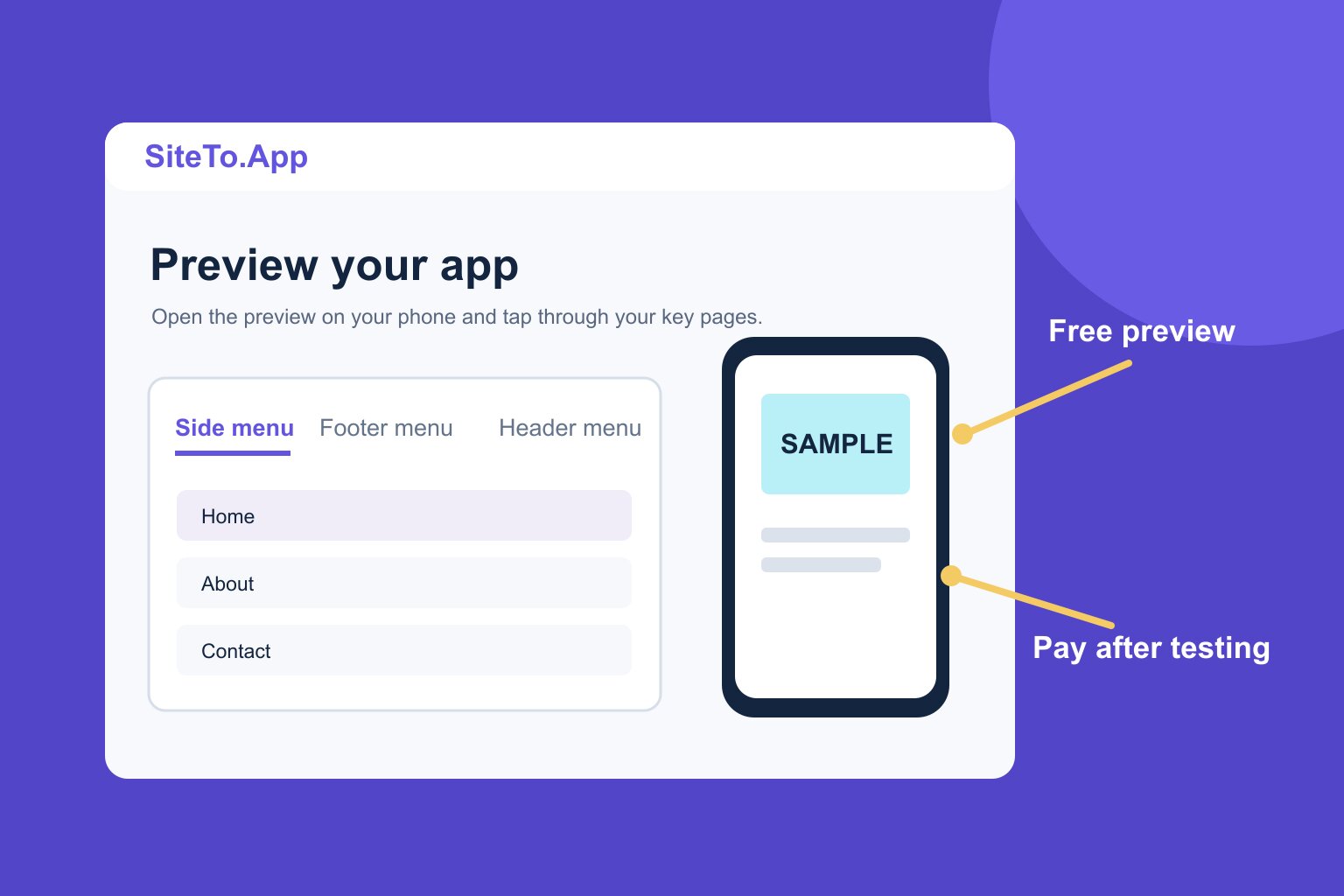
If the site uses a third-party cart or headless checkout, test that exact integration. The site-based app uses the published experience; it does not provide a separate commerce engine. Record the result for iOS and Android when both builds are planned. A checkout bug discovered after a store launch is harder to explain to a client than one found in the free preview.
Build a reviewable app experience
Configure app navigation around the client’s key journeys, then test back navigation, external links, consent, forms, and login from a fresh preview.
Apple’s Guideline 4.2 expects more than a repackaged website. Make navigation support the client’s main tasks, and test the complete app before submission. The Guideline 4.2 guide covers review risks.
If push notifications are part of the brief, plan the message use case before connecting Firebase. Do users need timely new content or service updates? Who will write and send messages? The Firebase guide explains the connection. Notifications require user permission and should have a clear purpose.
Give the client a clean cost and ownership handoff
SiteTo.App offers a free preview without a credit card. Builds cost $29 for Android, $79 for iOS, or $99 for both, one-time per build. Apple and Google developer accounts and store fees are separate. Show these as separate lines in the client handoff; the pricing page is the current product reference, and all platform pages describe the URL-based approach across site builders.
The client should control the developer accounts and the website domain. Record who maintains the Webflow site, who manages app settings, who responds to store review, and who sends notifications. SiteTo.App sends iOS builds to TestFlight in the connected Apple account and provides downloadable Android packages. The Apple account guide, Google Play account guide, and create and publish guide cover the steps.
If you deliver this as a service, quote your own project scope and fee separately from the product build price. The cost guide covers the full budget, and the publishing guide covers store submission.
Repeatable agency acceptance checklist
Use one checklist per client and keep the pass or fail notes with the project:
- Content: Test four varied CMS items, list navigation, filters, and empty states. Assign a content owner for future mobile checks.
- Layout: Review Webflow's phone breakpoints, then test published pages on a small iPhone and an Android device.
- Motion: Tap every menu, accordion, and call to action; inspect scroll and entrance effects for blocked controls.
- Performance: Test first load and repeat visit on a mobile connection. Optimize the source site if it is slow.
- Transactions: Complete login, form, booking, or Ecommerce checkout journeys relevant to the client.
- App shell: Test navigation, external links, consent, and a fresh preview with no saved session.
- Handoff: Confirm account ownership, privacy policy, support contact, screenshots, reviewer login, and the person responsible for store messages.
Keep pass or fail notes with the client handoff, and rerun affected journeys after site changes.
Common questions
Can a Webflow CMS site become an app without a second CMS?
Yes, a site-based app uses the published Webflow pages. CMS updates remain in Webflow and appear when users load or refresh the site in the app. Keep testing varied content states as the collection grows.
Do Webflow interactions work in the app?
The app loads your published site, but interaction behavior depends on the implementation and device. Test touch triggers, scroll effects, custom scripts, and overlays in the preview on real phones.
Can an agency publish for a client?
An agency can prepare the site and app configuration, but the client should decide who owns the Apple and Google developer accounts and who handles store review. Follow each store's current account and submission requirements.
Is Webflow Ecommerce checkout included?
The app displays the checkout on the client's published Webflow site. Test the full purchase path, including payment redirects and order confirmation, for the client's exact setup before building.
Next step
With a passed checklist and clear account ownership, preview your client's Webflow site as an app. Use the preview findings to fix the Webflow source before you choose an iOS, Android, or combined build.
See your website as an app
Customize the experience and preview it before choosing a platform.
Build your preview