
A Squarespace to app build starts with the mobile site you already publish. A converter loads it in a branded app shell, keeping your portfolio, services, content, or shop in Squarespace. First check whether visitors can complete their main tasks on a phone and in the app preview.
The checks differ for a portfolio, paid member site, and shop. This guide covers Fluid Engine layouts, member access, Commerce checkout, consent, and embeds.
Pick the job your app will do
Choose a reason people would return to the app: a project gallery, repeat bookings, paid lessons, or a shop.
Turn that reason into three test journeys, such as “open a gallery, choose a collection, send an inquiry.” If you cannot identify a repeat task, reconsider a store build. Apple’s minimum functionality rule expects more than a repackaged website; our Guideline 4.2 guide explains the risk. The Squarespace platform checklist adds tests for stores, scheduling, members, forms, and embeds.
Review Fluid Engine's mobile layout, section by section
Squarespace's Fluid Engine mobile layout guide explains that you can arrange and resize blocks for mobile without changing their desktop arrangement. A good desktop layout does not prove the mobile arrangement works.
Open every high-traffic page in the mobile editor. Look at the first visible block, the order of images and copy, and how large a finger target each button offers. Then load the published page on a real phone. A gallery that looks balanced in the editor may still ask visitors to scroll past several large images before they see the project description or contact action.
For a portfolio, prioritize a clear project title, fast-loading images, and an obvious next step. For a service page, keep the booking or inquiry button close to the service details. For a shop, check that product options and cart controls remain usable after your design adjustments. If you hide a decorative block on mobile, confirm it does not contain essential information.
Fix the layout in Squarespace, publish it, then check the app preview.
Test Member Areas and paywalled content with two accounts
Use one member account with access and another without it. In a fresh preview, test sign-in, password reset, protected content, and a return visit. Check where each account lands after authentication.
If you sell access to content, follow the same path a new customer follows: read the offer, choose access, complete any payment flow, and open the protected material. For an existing customer, sign out and back in, then confirm access remains visible. Test any email verification or external identity step your particular site uses. A flow that opens a new browser tab may not return to the embedded view as expected.
Prepare a test login that lets reviewers reach protected content without purchasing. Keep it current and explain the route in review notes.
For a creator site, make the library, new content, or member dashboard easy to reach from app navigation.
Run Squarespace Commerce checkout end to end
A site-based app displays your existing Squarespace checkout. Test the whole transaction, not just the product page. Try a product with variants, add it to the cart, apply a discount if you offer one, select delivery or pickup where relevant, and reach the order confirmation.
Repeat with the payment methods you expect customers to use. A wallet prompt, payment redirect, or authentication step may move outside the app. Verify that the customer can finish payment and return to a clear confirmation. If you sell digital access, confirm the post-purchase route into member content. If a payment method cannot be safely tested, record that limitation and test it with the provider's documented sandbox or your own controlled transaction before launch.
The same principle applies to scheduling. Select an appointment, choose a time, submit the required details, and check the confirmation and rescheduling path. Your exact Squarespace configuration, integrations, and payment provider determine what happens. Use the preview to observe it rather than assuming every feature that works in a browser will work identically in an app.
Keep existing Commerce or scheduling charges separate from app costs in the website-to-app cost guide.
Check cookie banners, forms, and embedded tools
A cookie banner can occupy a large portion of a phone screen, especially under an app's navigation. Visit the site as a new user, read the text, and try each choice you offer. Make sure a person can close it without accidental taps and can still reach the main action. Squarespace's site launch checklist calls out mobile layouts and privacy controls as launch checks.
Forms deserve a complete submission test. Open the keyboard, fill every required field, attach a file if your form allows it, submit, and verify the success message and destination. In a portfolio, that inquiry form may be the app's most valuable feature. In a service business, an appointment embed may be more important than the landing page.
Custom code blocks, video players, maps, and third-party embeds need separate attention. Load them on cellular data and rotate the phone if your audience might. Try any full-screen mode and return to the app. If an embedded tool fails in the preview, check its provider's current embedding rules. Do not promise customers a feature until you have seen it work with your actual setup.
What a site-based build changes
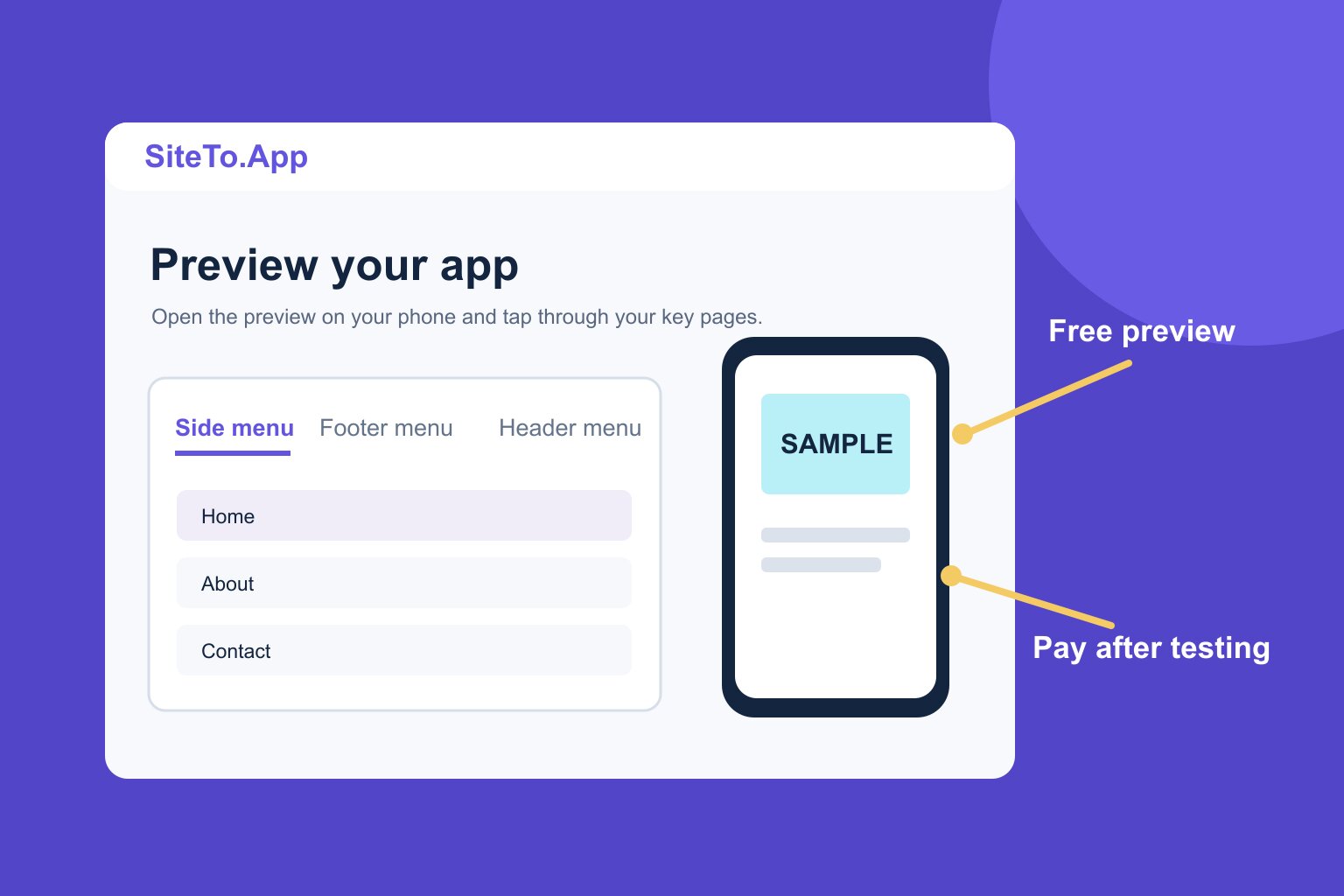
SiteTo.App lets you configure an app name, icon, colors, launch screen, and navigation around your live website. The site still controls page content, Commerce, scheduling, and member access. When you publish ordinary Squarespace page changes, users see them when the app loads or refreshes those pages. App shell changes may call for a new build.
The build is a one-time payment per build: $29 for Android, $79 for iOS, or $99 for both. Apple's and Google's developer accounts and store fees are separate. The pricing page shows these choices, and the platform directory shows the same approach for other site builders. If you want push notifications, SiteTo.App documents a Firebase connection process in its Firebase guide; users must allow notifications.
You still prepare a store listing, screenshots, privacy answers, and support information. SiteTo.App provides Android packages and sends iOS builds to TestFlight through your Apple Developer account. The create and publish guide walks through the workflow, while the Apple Developer account guide explains the iOS connection.
The conversion guide compares routes, and the publishing guide covers store review.
A checklist matched to your kind of site
Use the relevant rows as release criteria, not as a feature shopping list:
- Portfolio: On a phone, can a visitor see your work, understand what you offer, and send an inquiry without fighting image sizes or form fields?
- Service business: Can a client choose a service, time, and payment path, then find the booking confirmation?
- Member site: Can a paid member sign in, reach protected content, return later, and reset a password? Can a reviewer use a test login?
- Shop: Can a buyer select variants, complete checkout with each major payment route, and see an order confirmation?
- Every site: Can visitors dismiss consent banners, open embeds, use navigation, and recover from an external link?
Test both iOS and Android if you plan to sell both builds. Try a small phone as well as a larger one. Record the result for each journey and fix the source page where possible. That process is more reliable than relying on a desktop screenshot or a single successful tap.
Common questions
Can I convert a Squarespace website to an iOS app?
Yes. A site-based builder can start from the published URL and package it in an iOS app shell. Preview your own mobile layout, member access, embeds, and checkout before paying. Apple reviews the finished submission against its guidelines.
Does Fluid Engine's mobile layout appear in the app?
The app loads your published mobile page, so its visible layout is the starting experience. Publish your mobile changes in Squarespace, then check the app preview to confirm the result on a phone.
Will my shop or member area work automatically?
Those experiences use the flows on your live site, but your exact settings and integrations matter. Run the relevant journey from start to finish in the preview, including payment, sign-in, and any redirects.
Do I need to maintain two sets of content?
For a site-based app, your Squarespace content remains the source. You maintain app branding and navigation separately, while normal page and product updates are published through Squarespace.
Is the preview free?
Yes. You can enter your URL, configure the initial app experience, and preview before choosing a paid build. The build and third-party developer account costs are separate.
Next step
When your main customer journeys work on the published mobile site, preview your Squarespace site as an app. Test the same journeys there before you choose a build or prepare store listings.
See your website as an app
Customize the experience and preview it before choosing a platform.
Build your preview