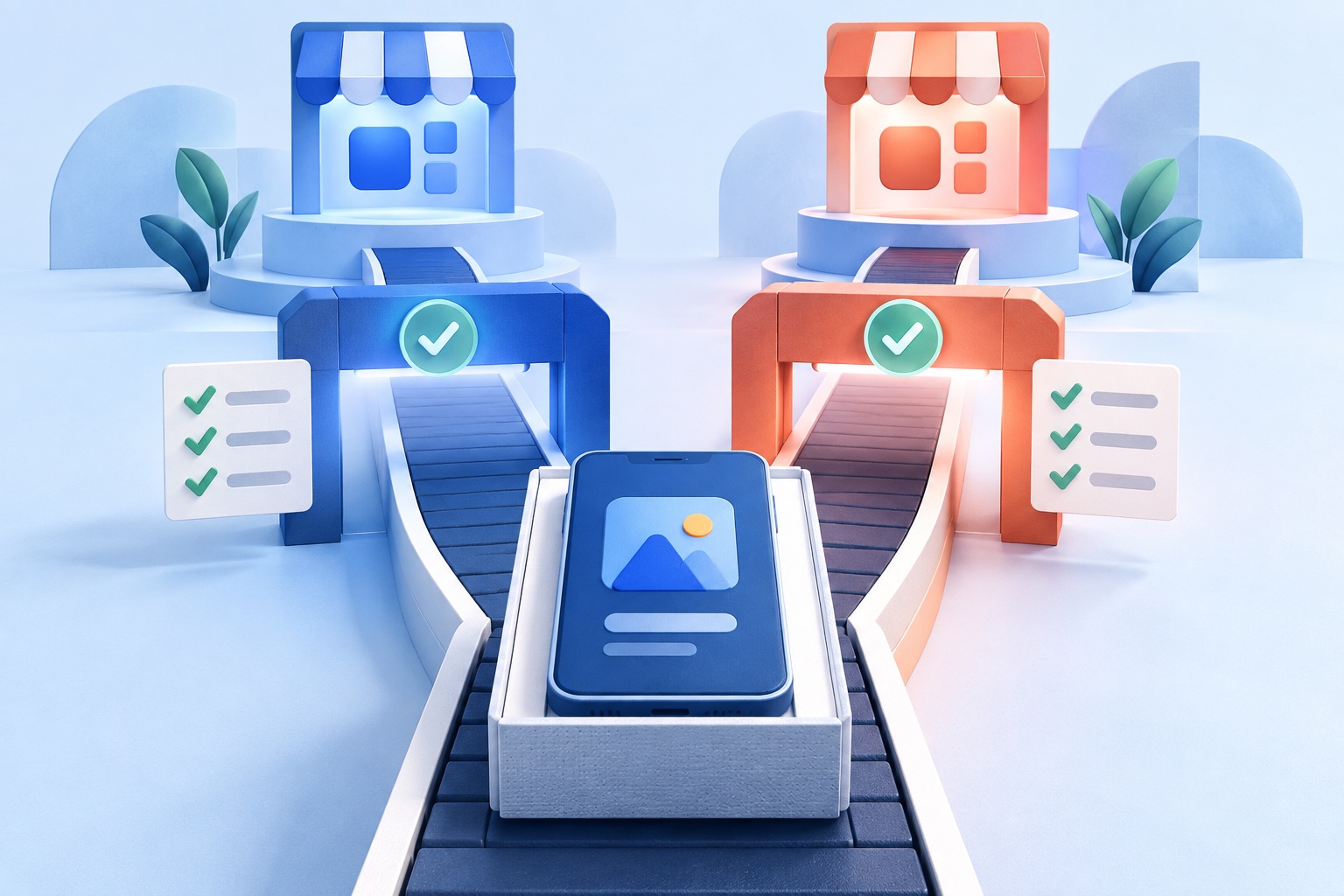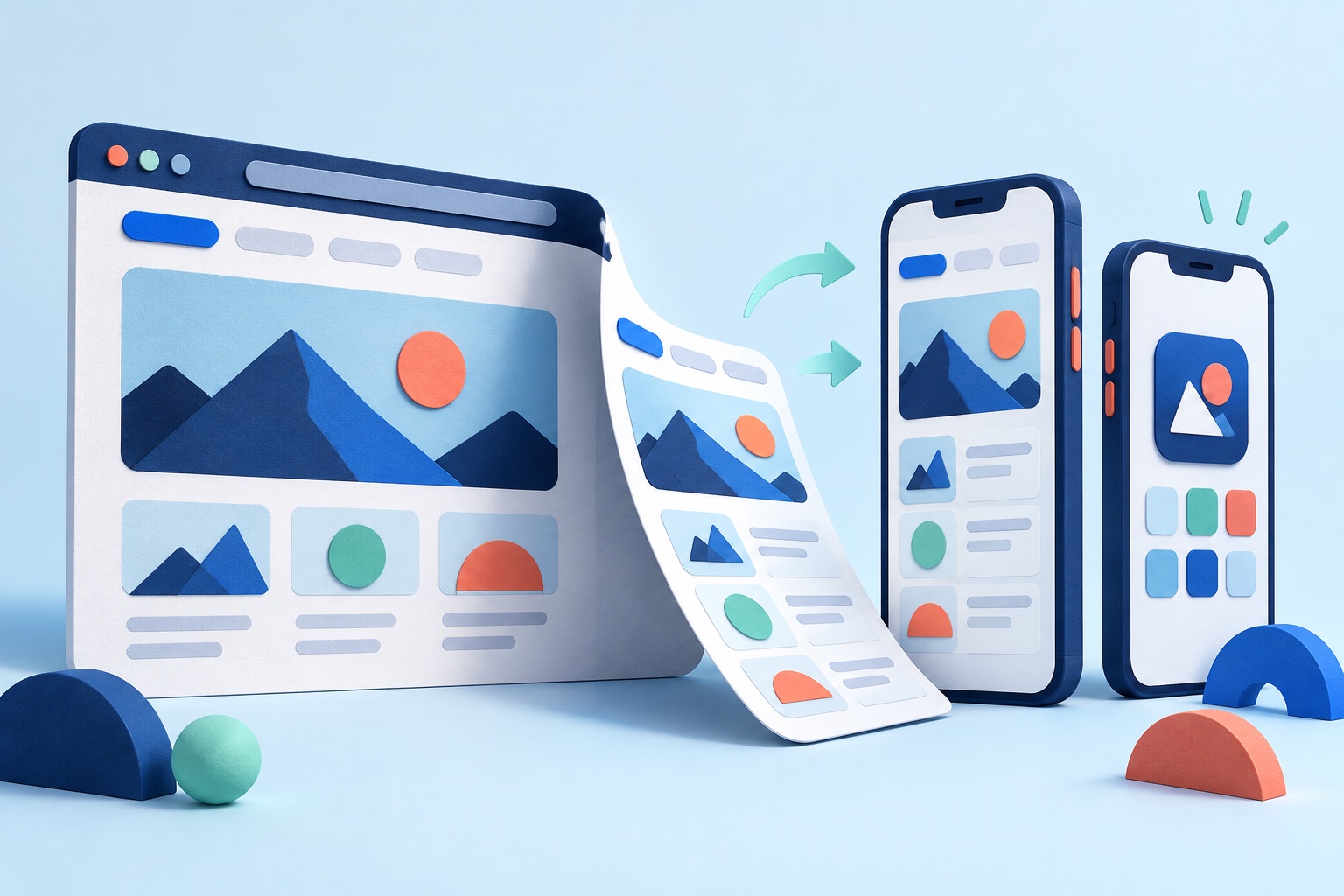
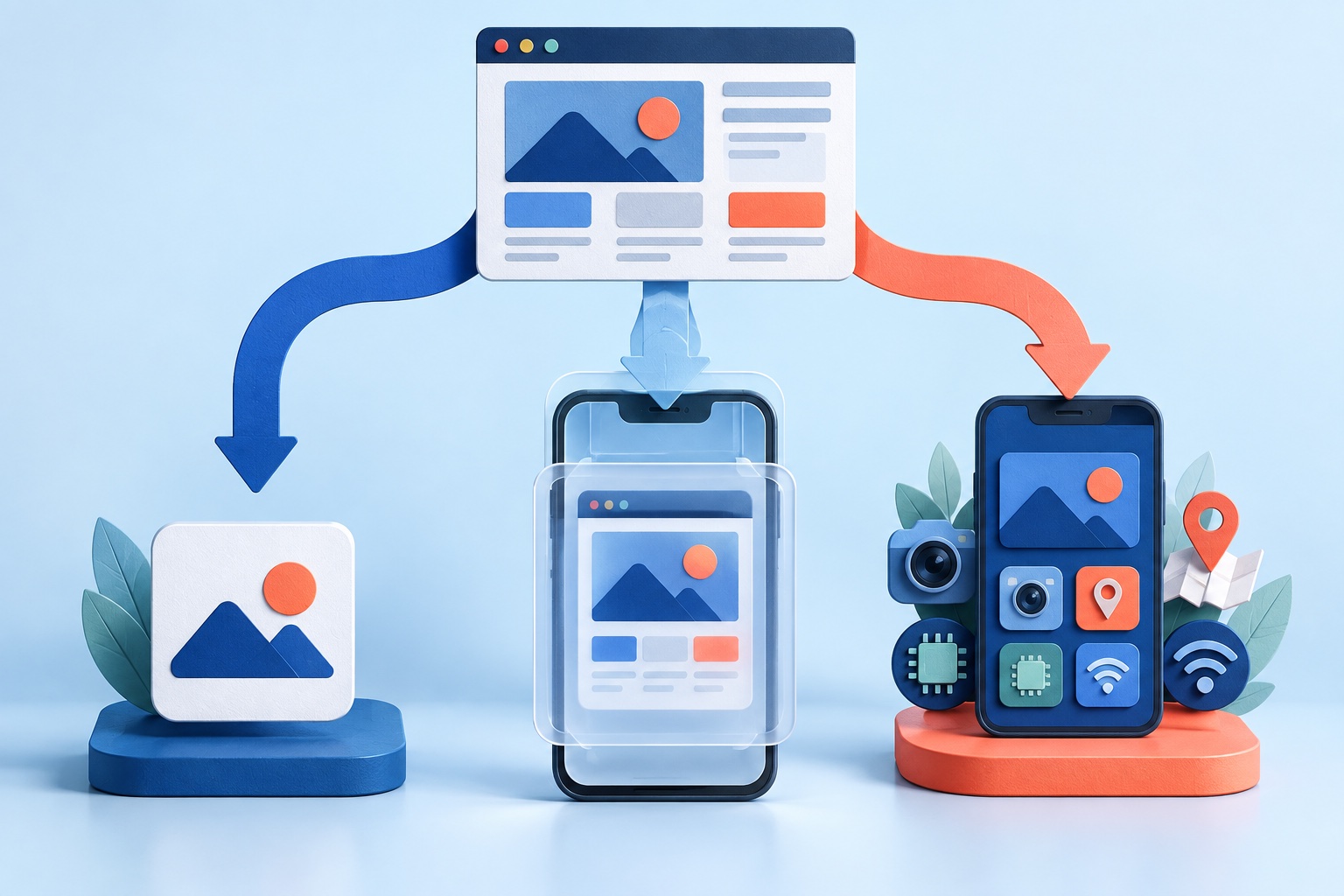
A progressive web app (PWA) is a website that can be installed from the browser. That is useful, but most customers still look for apps in the App Store and Google Play. If your PWA already works well on a phone, you can package it for both stores without rewriting it.
The catch is that the two stores treat web-based apps very differently. Google has an official route for PWAs. Apple does not, and its review team expects more than a repackaged website. This guide covers the realistic options, the rules that matter, and a checklist for getting a PWA through review.
Why publish a PWA in the app stores at all?
A PWA already gives users an install prompt, a home-screen icon, and a full-screen experience. Store listings add things a browser install cannot:
- Discovery. People search the stores for products like yours, and a listing gives you a page that ranks there.
- Trust. A store listing with reviews and a verified publisher is a stronger signal than "Add to Home Screen" on a website.
- Reliable installation. On iPhone, installing a PWA from the browser is hidden in the share menu. A store install is one tap.
- Native channels. A packaged app can use push notifications and deep links through the platform rather than depending on what the browser exposes.
None of this means you should abandon the PWA. The website stays the product; the store apps are another way to reach it. For the trade-offs between a PWA, a WebView app, and a fully native build, read PWA vs native vs WebView.
Option 1: Trusted Web Activity for Google Play
Google Play supports PWAs through a Trusted Web Activity (TWA). A TWA is an Android app that opens your PWA full screen using the user's installed Chrome browser, instead of an embedded WebView. According to Chrome's documentation, the app and the website verify each other with Digital Asset Links, which proves that both come from the same developer.
Tools such as Bubblewrap (a command-line tool) and PWABuilder generate and build the Android project for you. The usual steps are:
- Make sure your PWA has a valid web app manifest, a reachable start URL over HTTPS, and icons.
- Generate the Android project with Bubblewrap or PWABuilder.
- Publish a Digital Asset Links file on your domain so the app can be verified.
- Build a signed Android App Bundle and upload it to Google Play Console.
Things to know before you choose this route:
- The experience depends on Chrome being installed and up to date on the device. If the verification fails or Chrome is unavailable, users can see a browser toolbar.
- The host app cannot read your web content, cookies, or local storage directly. Communication with native code is limited.
- You still need a Play Console account, a store listing, a privacy policy, and the testing requirements Google applies to new personal accounts. Our publishing guide walks through those, including the closed-test rule.
A TWA is a good fit if you are comfortable with command-line tools and only need Android.
Option 2: DIY wrapper for iOS
Apple has no TWA equivalent. To put a PWA in the App Store you need a native iOS app that loads it, typically through WKWebView. The DIY version looks like this:
- Create an Xcode project on a Mac.
- Load your PWA in a web view and add icons, a launch screen, and navigation.
- Enroll in the Apple Developer Program and register a bundle ID.
- Sign, archive, and upload the build to App Store Connect through Apple's toolchain.
- Test with TestFlight, complete the listing and privacy answers, and submit for review.
PWABuilder can generate an iOS project as a starting point, but you still open and sign it yourself, which requires a Mac and Xcode. We cover that process in more depth in how to convert a website to an iOS app without Xcode or a Mac.
The bigger issue is not technical. It is whether the app will be accepted, which we cover next.
What Apple expects from a PWA wrapper
Apple's App Review Guidelines say an app "should include features, content, and UI that elevate it beyond a repackaged website" (guideline 4.2). A PWA loaded in a bare web view is exactly the kind of submission that guideline targets.
Other points worth knowing:
- Guideline 4.2.2 says that, other than catalogs, apps should not primarily be marketing materials, web clippings, content aggregators, or a collection of links.
- Guideline 2.1 expects a final, working build and demo credentials if your app has a login.
- Guideline 4.2.6 says apps created from a commercialized template or app generation service are rejected unless they are submitted directly by the provider of the app's content. Publish under your own developer account, not a vendor's.
There is no formula that guarantees approval, and no tool can promise it. What you can do is give reviewers a reason to see a real app: native navigation, push notifications users opt into, working deep links, and a polished loading and offline experience. For a full walkthrough of the review rules, see Apple Guideline 4.2: will Apple reject a website app?.
Option 3: Use a converter for both stores
A converter such as SiteTo.App does the packaging for both platforms from your URL. You enter your website address, set the app name, icon, colors, splash screen, and navigation, preview it on your phone, and request a build.
Based on how the product works today:
- Android builds can be produced as an APK or an AAB.
- iOS builds are signed with your Apple Developer account and delivered to TestFlight in your App Store Connect account, and you take it from there to submit it for review.
- Push notifications are set up through Firebase.
- The website remains the source of truth, so changes you ship on the web reach app users without a new store release.
- Pricing is a one-time $29 for Android, $79 for iOS, or $99 for both. Apple and Google developer account fees are separate.
SiteTo.App treats your PWA as a website: it loads your public URL inside the app. Whether PWA-specific features such as service-worker caching, offline pages, or the web install prompt behave inside the app shell depends on the web view the app uses, so test them in the preview rather than assuming. Push notifications in the app are configured through Firebase rather than through your PWA's web push.
You can compare converters in our best website-to-app converters guide, and see the cost side in how much it costs to turn a website into an app. If your site runs on a specific platform, the platform pages explain what to check for that stack.
Which route should you take?
- Android only, comfortable with the command line: a TWA through Bubblewrap or PWABuilder is a good, official path.
- iOS and you have a Mac and a developer comfortable with Xcode: a DIY wrapper gives full control, but you own every rebuild and the SDK updates.
- Both stores, without owning native projects: a converter is the lowest effort, and you keep the website as the product.
- A PWA that depends heavily on offline behavior or background sync: test carefully before committing, whatever route you choose.
Prepare your PWA before you package it
A store listing exposes weaknesses that a browser tab hides. Before you package:
- Check that every screen is responsive and usable with touch and the system back gesture.
- Make sure sign-in, checkout, and file uploads work in an embedded view, including any third-party authentication that opens a popup or redirect.
- Add a privacy policy page and a support page that are reachable without logging in.
- Decide which external links open in the app and which open the browser.
- Handle offline and error states with a clear message rather than a blank screen.
- Remove any message that asks users to "install this app" since they already did.
The readiness checklist and cost planner can help you spot gaps before you build.
Store listing and review checklist
- Developer accounts are owned by your business, not a contractor.
- App name, icon, and screenshots show the real app and match the build.
- The privacy policy and store privacy answers cover the website, analytics, and payment tools loaded in the app.
- Reviewer credentials work and are included in the review notes.
- The app adds native value beyond the website, such as navigation, notifications, or deep links.
- Both builds were tested on real devices on a fresh install.
- Someone is assigned to watch review messages and respond with specifics.
Frequently asked questions
Can I publish a PWA on the App Store without a native wrapper?
No. The App Store only distributes native app binaries. A PWA has to be packaged inside one, and the packaged app has to meet Apple's guidelines.
Is a PWA allowed on Google Play?
Yes. Google supports PWAs through Trusted Web Activities, and you can also publish a wrapper app.
Will my PWA keep working offline inside the app?
It depends on the route and the web view. Test offline behavior in the preview or a test build instead of assuming it carries over.
Do I need a Mac?
For a DIY iOS build, yes. A converter builds the app for you, though you still need an Apple Developer account for App Store Connect.
Does publishing guarantee approval?
No. Apple and Google decide on every submission. A better listing and a more app-like experience improve your odds but cannot guarantee the result.
Next steps
If your PWA is ready, preview it as an app with SiteTo.App and test it on your own phone before you decide on a route. Once you are happy, review pricing and follow the create and publish guide.
See your website as an app
Customize the experience and preview it before choosing a platform.
Build your preview